
fnOS Database Backup Guide
To protect playback progress, metadata, and user data, back up the entire Leelaa Reader database directory regularly. The database uses WAL mode, so a complete backup must include all three files: leelaa.db, leelaa.db-wal, and leelaa.db-shm. fnOS Backup & Sync can automate this workflow.
1. Locate Database
- fnOS native install (default): the database directory is usually
/volX/@appshare/leelaa.reader/, containing all three database files - Docker install: depends on your host mount path
2. Create Scheduled Backup Task
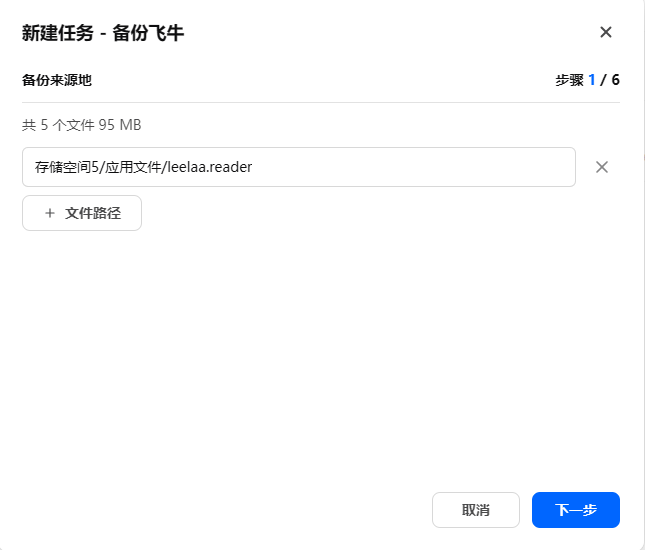
Step 1: Choose source
Select local backup source and point to Leelaa data directory.
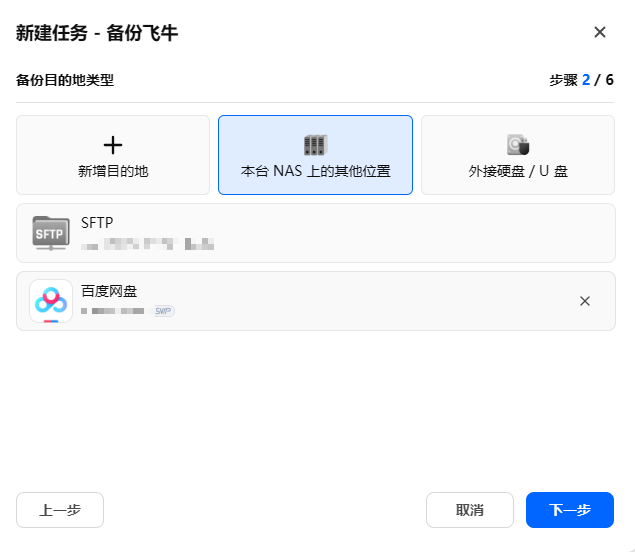
Step 2: Choose destination
Destination can be local NAS path, external disk, remote server, or cloud drive.
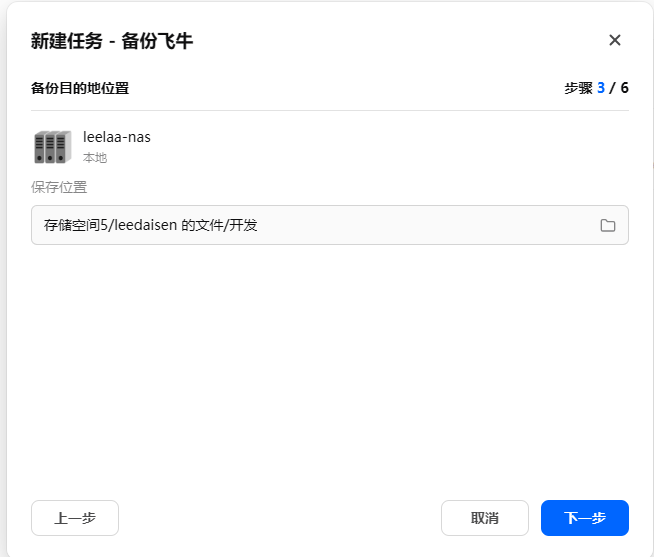
Step 3: Confirm folder
Pick a dedicated folder such as Backup/leelaa-db.
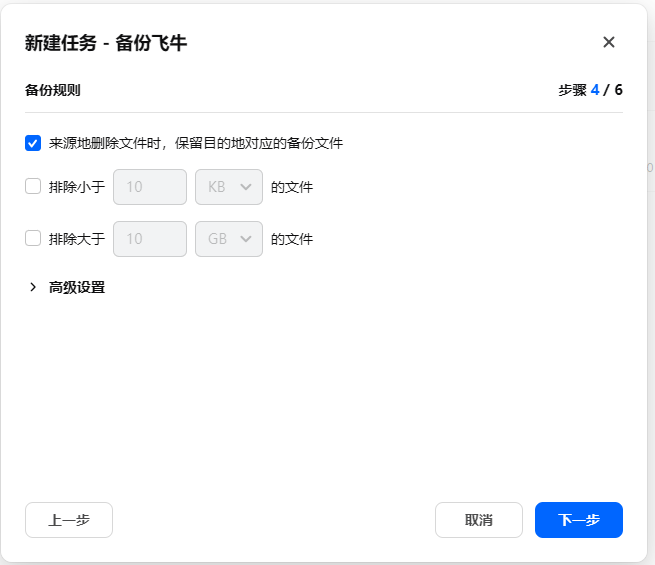
Step 4: Configure policy
Enable retention of destination files when source files are deleted.
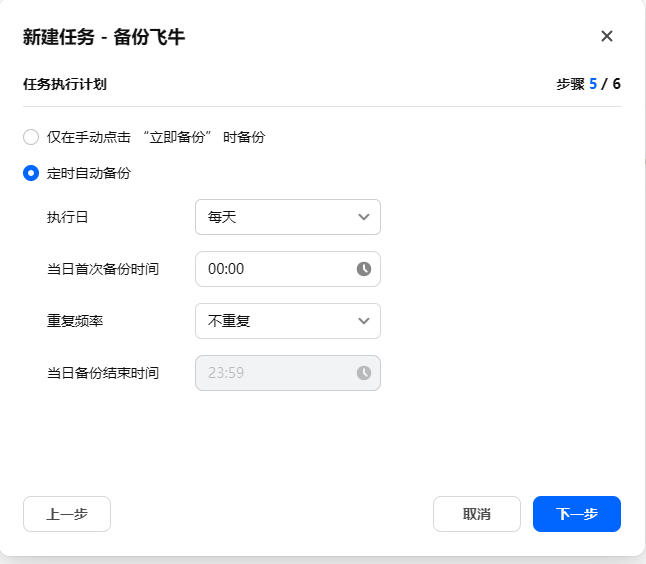
Step 5: Schedule
Recommended: daily backup during off-peak time (for example 00:00).
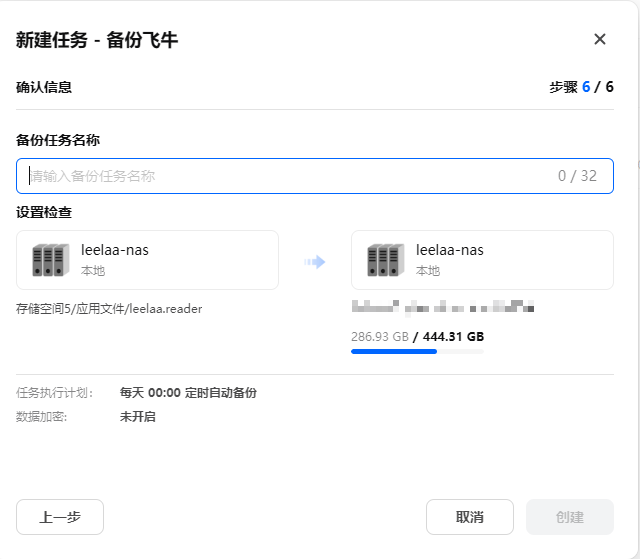
Step 6: Create task
Confirm source/destination/schedule, then create task.
3. Verify and Restore
- Run a manual backup once as validation.
- Verify that
leelaa.db,leelaa.db-wal, andleelaa.db-shmare all copied. - Stop Leelaa Reader before restoring. Copy all three files back to the original data directory, keep their names unchanged, and then restart the service. Do not restore only
leelaa.db.
Consistency: Stop the application or container before the first full backup and before restoring so all three WAL files come from the same point in time. For scheduled backups, prefer an application-consistent or snapshot mode when available.