

Native third-party HarmonyOS app
Listen to Leelaa Reader on HarmonyOS
Connect your audiobook library alongside local music and other private media.
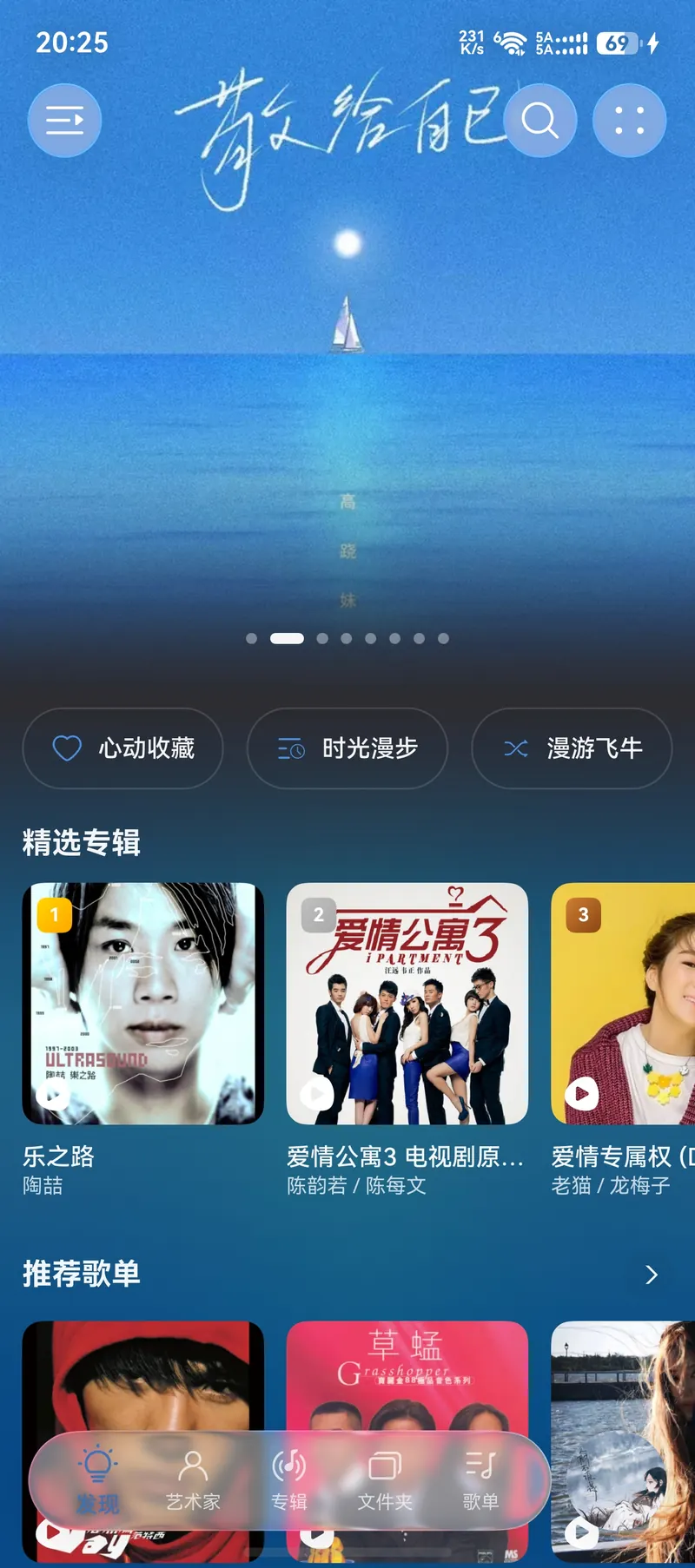
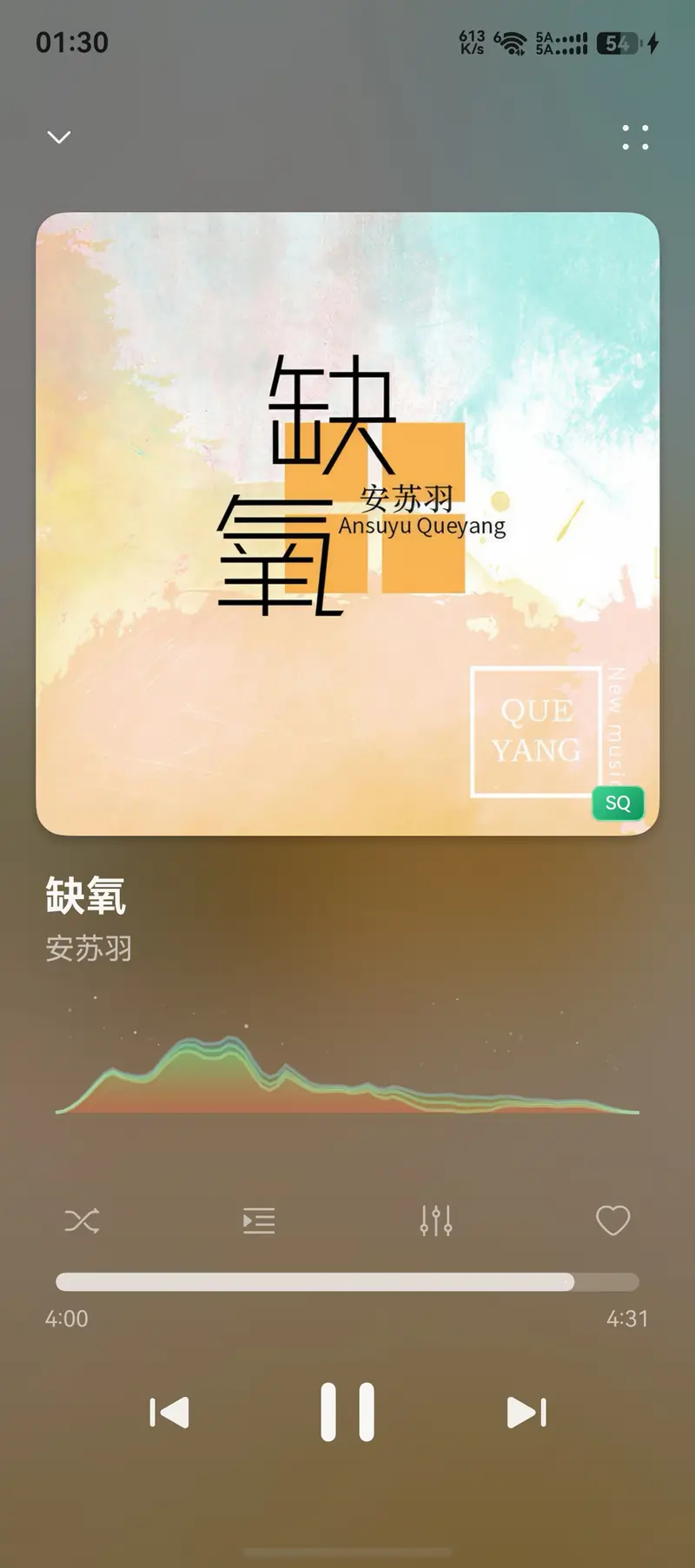
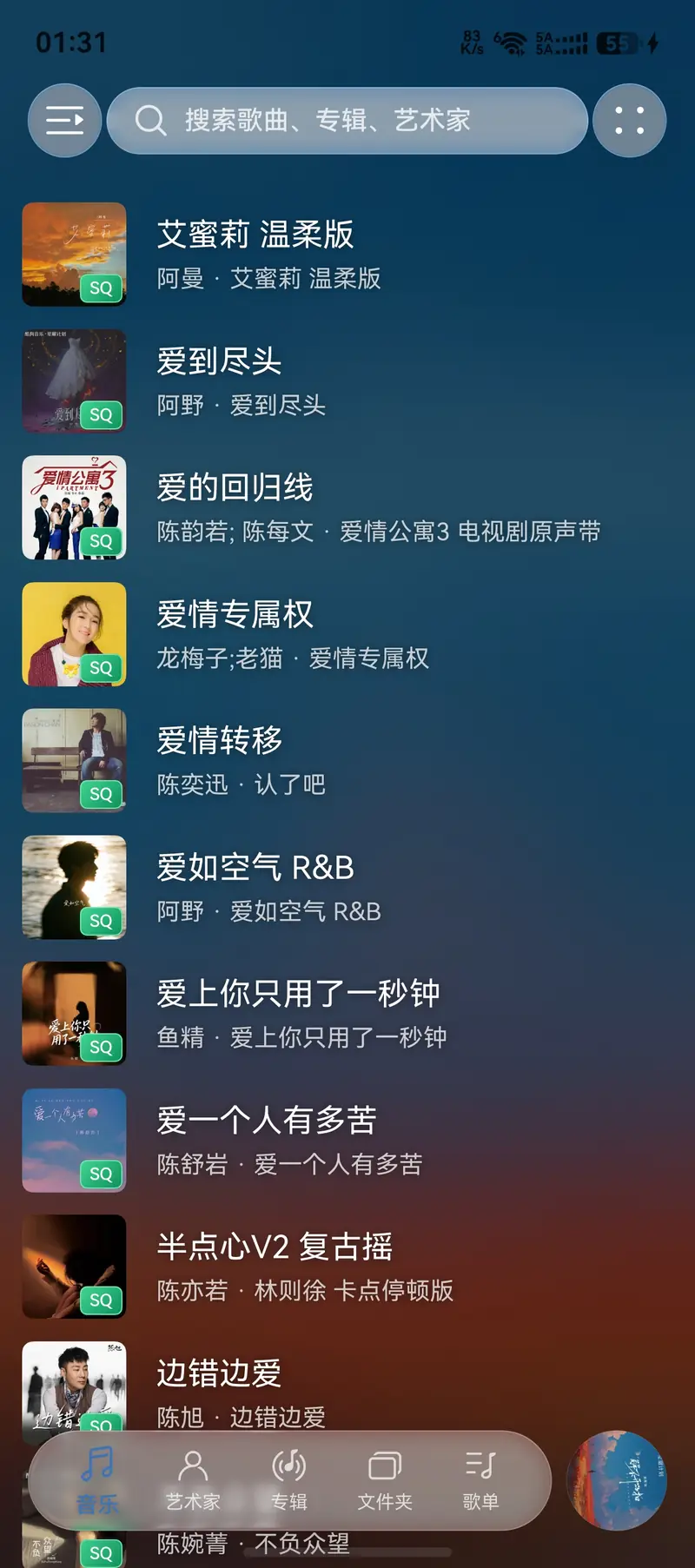 Music Ark official product preview, captured July 30, 2026.
Connect Music Ark to Leelaa Reader
Add Leelaa Reader to Music Ark to browse and play the audiobooks in your server library.
NOTE
The server address and username shown in the screenshots are examples only. Enter your own Leelaa Reader server details when connecting. The Music Ark interface may change slightly between versions.
Before you connect
- Server status: Make sure the Leelaa Reader server is deployed and running normally.
- Network access: Make sure your phone can reach the server over the LAN or the internet.
- Account details: Have your Leelaa Reader username and password ready.
- Browser check: Open the server address in your phone's browser first and confirm that the login page appears, for example
http://192.168.1.100:8686.
If the address does not open in the browser, check the Leelaa Reader service, server port, firewall, and your phone's current network before configuring Music Ark.
Open the Leelaa Reader setup page
1. Open Media Library
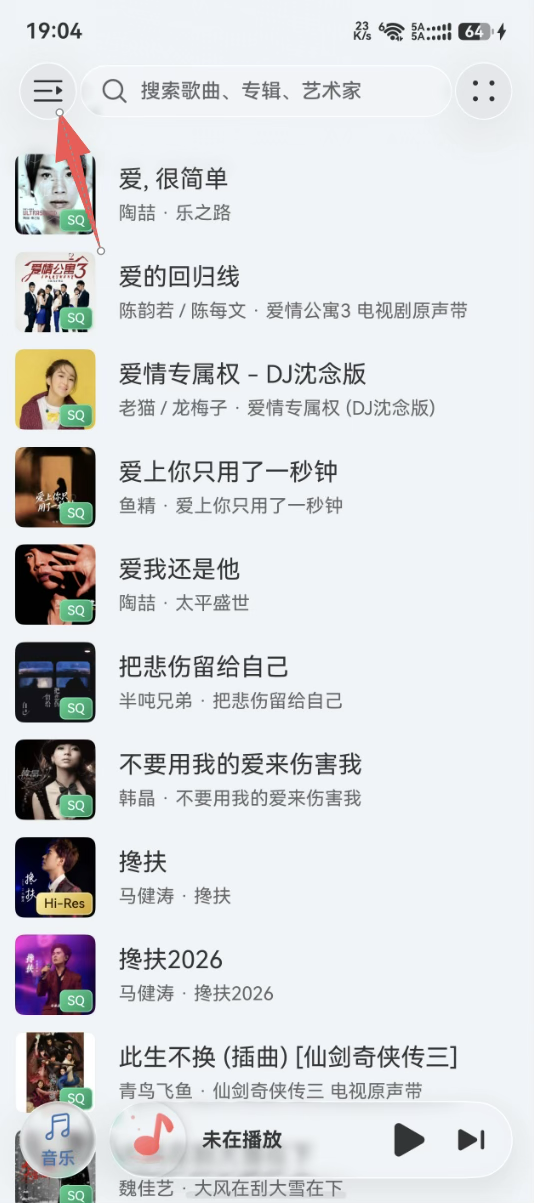
Launch Music Ark, tap the menu button in the upper-left corner, and then select Media Library from the sidebar.
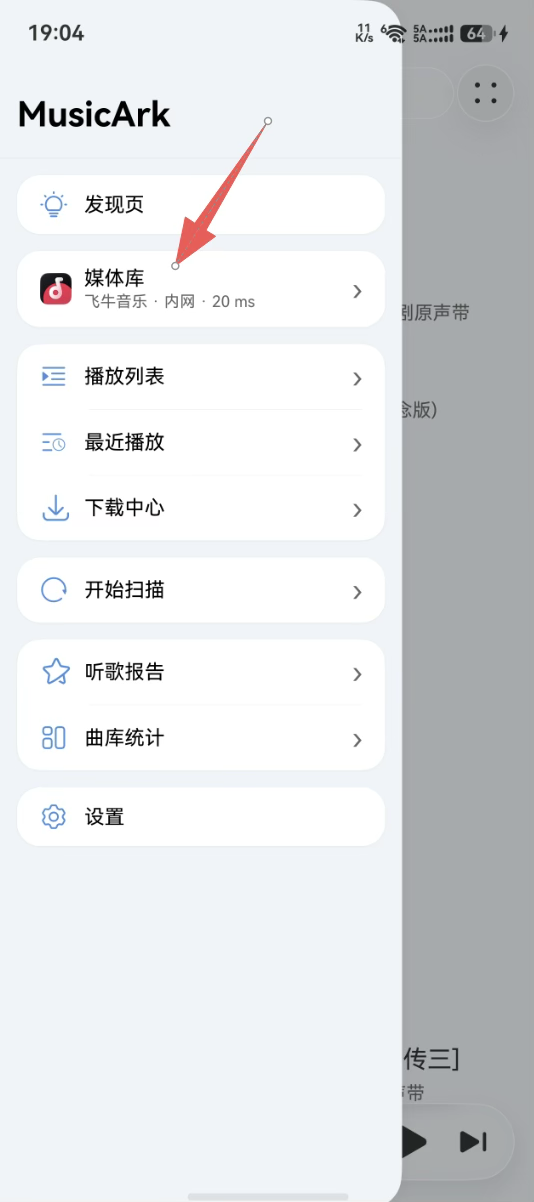
2. Add a media library
On the Media Library page, tap the plus button in the upper-right corner. Under Audiobooks, select Leelaa Reader.
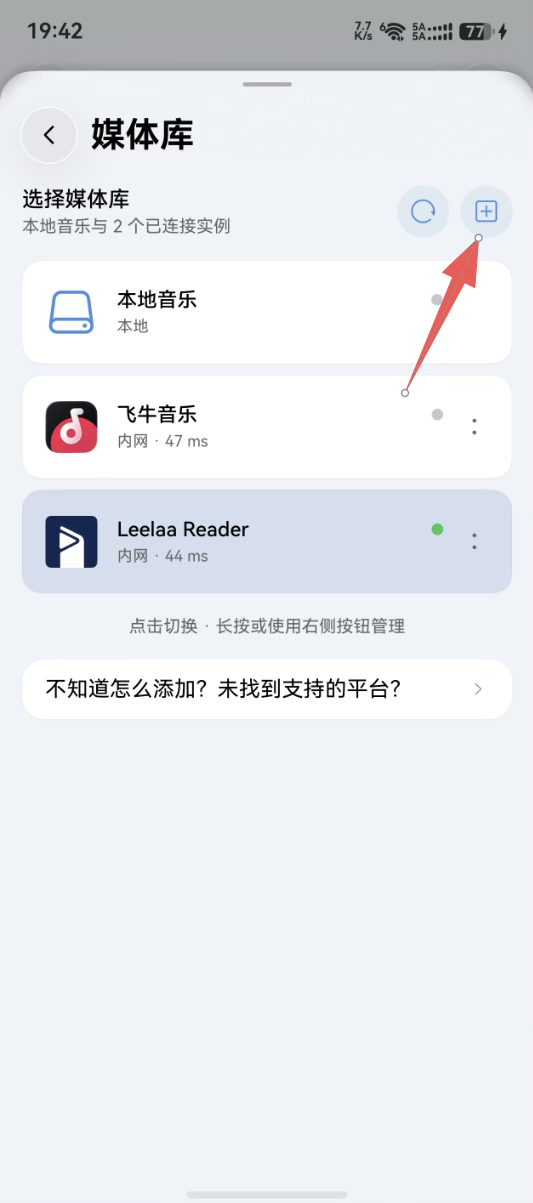
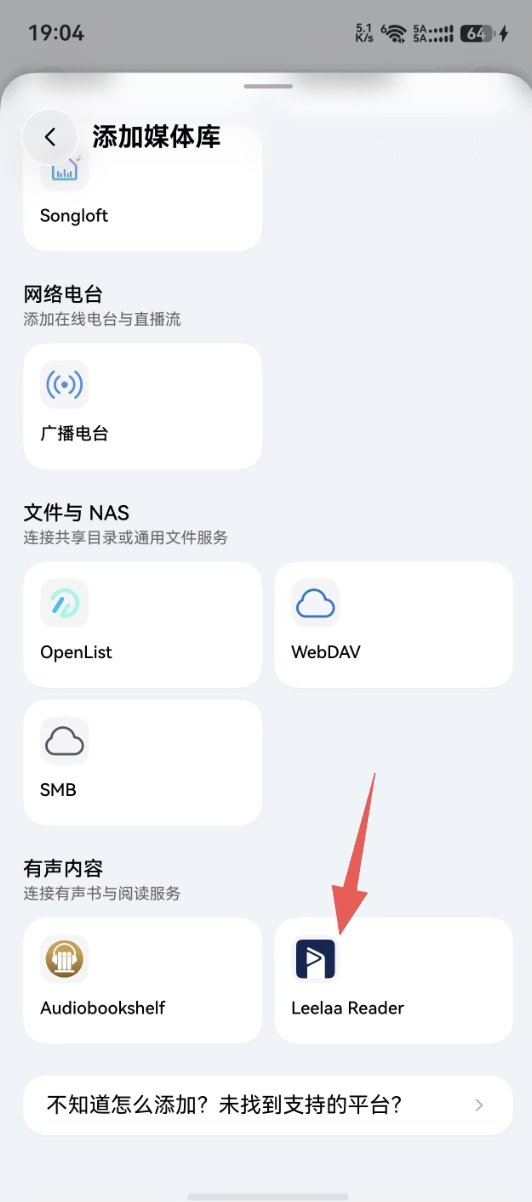
Enter the server and account details
Complete the form using the settings for your own deployment:
- Display name: Optional. Use a recognizable name such as “Home Audiobooks.”
- Smart external/LAN switching: Optional. Enable this only when you have both an external address and a LAN address. Leave it off when using a single address.
- Server address: Required. Enter the complete Leelaa Reader URL, including
http://orhttps://, for examplehttp://192.168.1.100:8686orhttps://reader.example.com. - Ignore SSL certificate: Off by default. Enable it temporarily only for a trusted self-signed HTTPS certificate after considering the security risk. It is not recommended for long-term use on public networks.
- Username: Required. Enter your Leelaa Reader login username.
- Password: Required. Enter the password for that account.
TIP
Leelaa Reader Docker deployments normally expose port 8686 by default. For local development, reverse proxies, or other deployment methods, use the actual listening port and proxy subpath.
Smart external/LAN switching
When enabled, the server setting expands into these fields:
- External address: The domain or public address used on mobile data or external networks.
- LAN address: The server address used on your home or office network.
- LAN WiFi names: The WiFi network names that should use the LAN address. Separate multiple names with commas.
Music Ark will prefer the LAN address when the phone is connected to one of the configured WiFi networks.
Test and save the connection
- After completing all required fields, tap Test Connection.
- Wait for the green Connection successful message and verify the address shown below it.
- Tap Save Configuration. Music Ark returns to the Media Library page after saving.
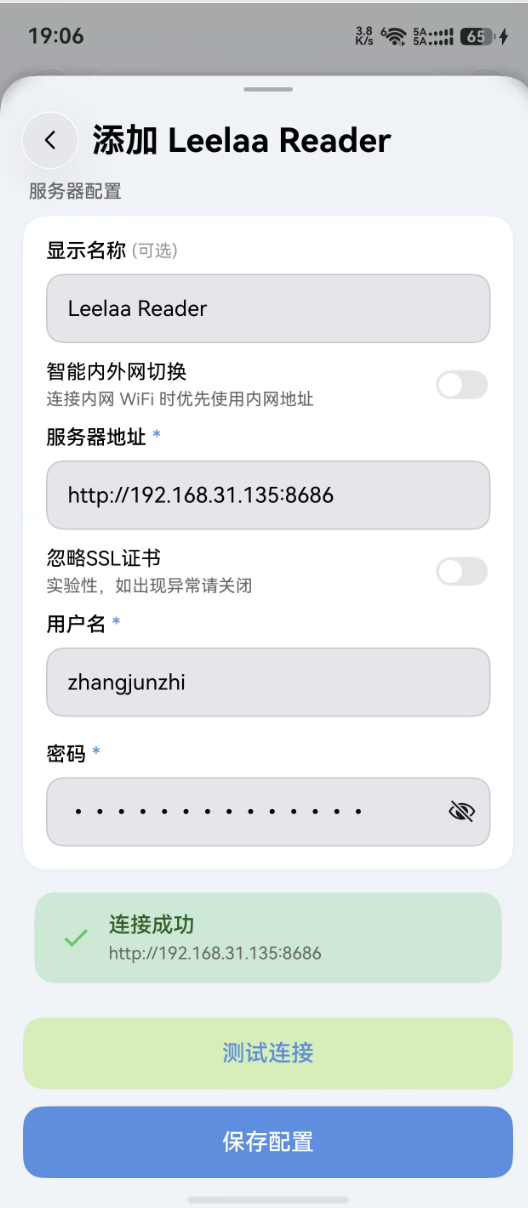
The newly added Leelaa Reader library is normally selected automatically. Large libraries may take some time to load audiobooks, authors, chapters, and cover images.
Troubleshooting connection failures
- Server availability: Open the configured server root address in a browser on the same phone.
- Address format: Check the protocol, domain or IP address, port, and reverse-proxy subpath.
- Account verification: Sign in to the Leelaa Reader web interface with the same username and password.
- LAN connectivity: Confirm that the phone can reach the server and that the firewall allows the server port.
- HTTPS certificate: Confirm that the domain certificate is valid. For a trusted self-signed certificate, temporarily try the ignore-certificate option.
- Smart switching: Check the external address, LAN address, and WiFi names.
- Server load: If the server is scanning the library, under heavy load, or on an unstable network, wait and test again.
Manage the library later
- Switch libraries: Tap the Leelaa Reader card on the Media Library page.
- Edit settings: Use the More button on the library instance to change its address or account.
- Delete the connection: Use the More button to remove the connection from Music Ark. This does not delete any audiobooks from the Leelaa Reader server.